 Pixsolo
Extend images online with AI
AI Image Extender is Pixsolo's outpainting tool. Upload a JPG, PNG or WebP image, set a larger target canvas and place the original on it; an AI image model fills the empty part of the canvas to match the scene. Choose one of seven common ratios (16:9, 9:16, 4:3, 3:4, 3:2, 2:3, 1:1) or enter your own width and height, drag the original to decide which side gets extended, and drag a corner to make it smaller. You can also describe in a sentence what should appear in the extended area; leave it empty and the scene continues naturally. Output is capped at about 8.3 megapixels (longest side 3840 px); if the target canvas is larger, the whole picture is scaled down proportionally, the actual size is shown before you run it, and the button shows the credits. Keep in mind that the AI redraws the whole picture, including the original part: large subjects and large text stay essentially the same, but colors shift slightly and very small text may be altered. When it's done, download the result as PNG or JPG. The original, the canvas settings and every result are saved under Projects, and it works on a phone too.
Uses credits per run, charged only on success, as shown in the tool. Sign in to upload; running needs credits.
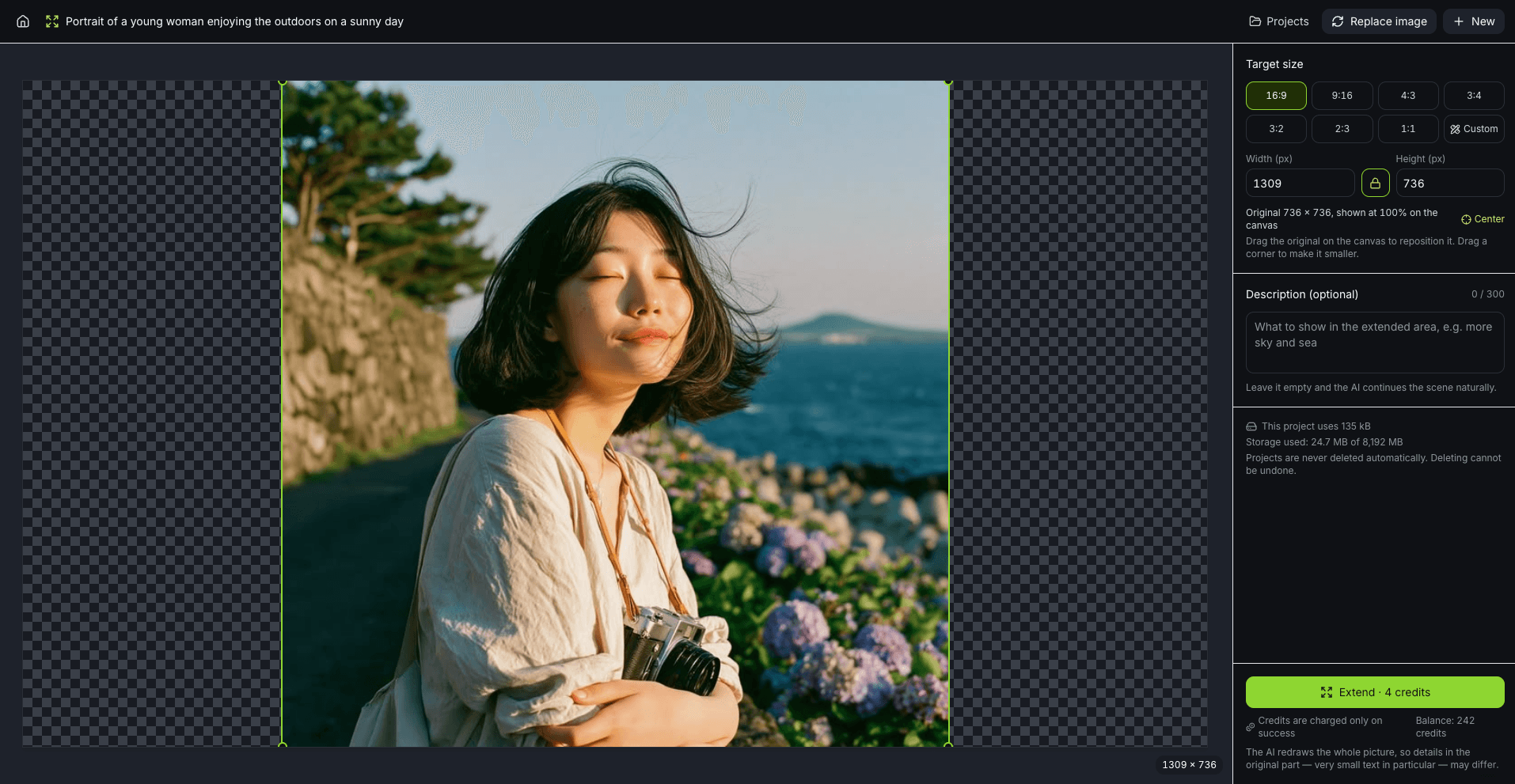
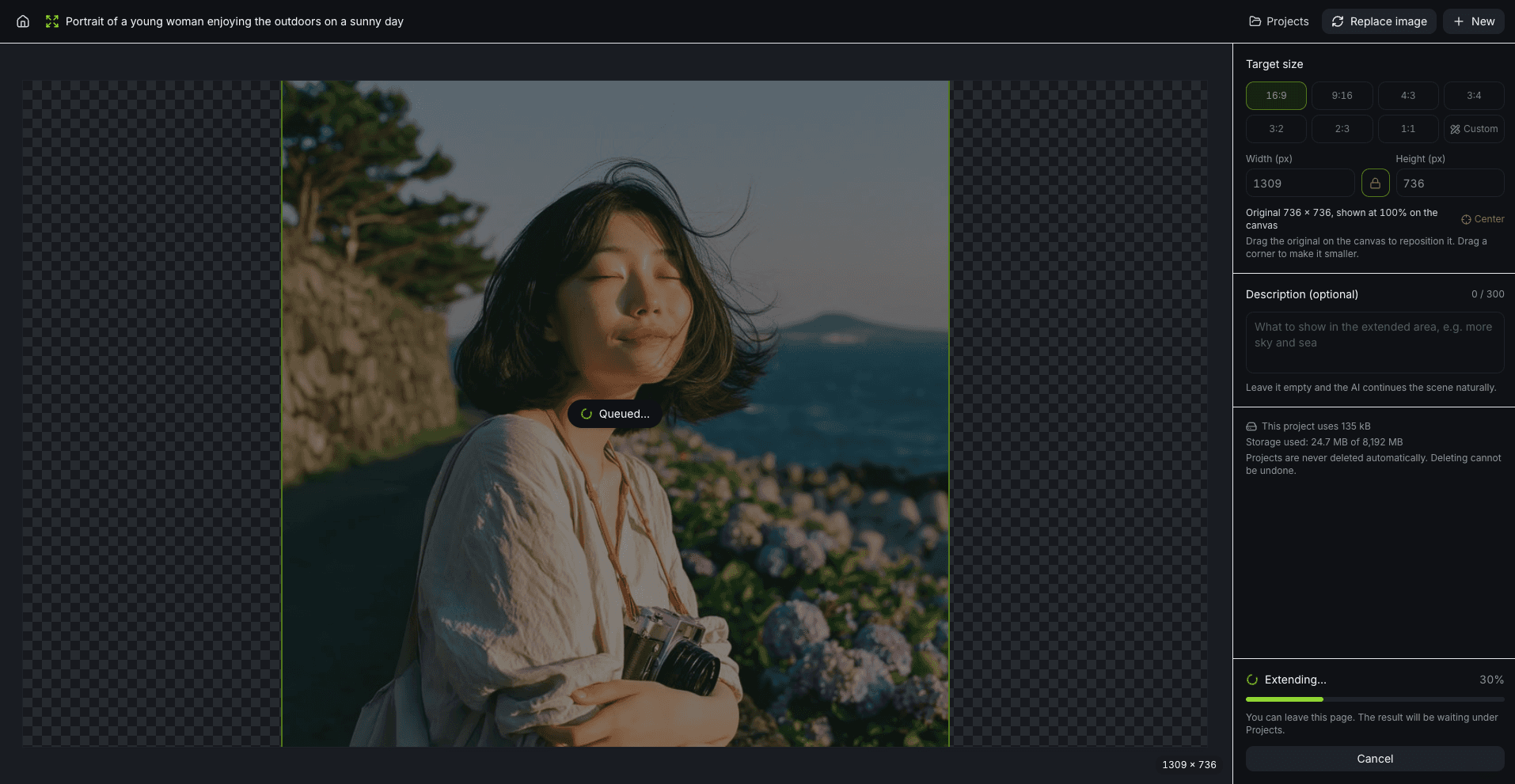
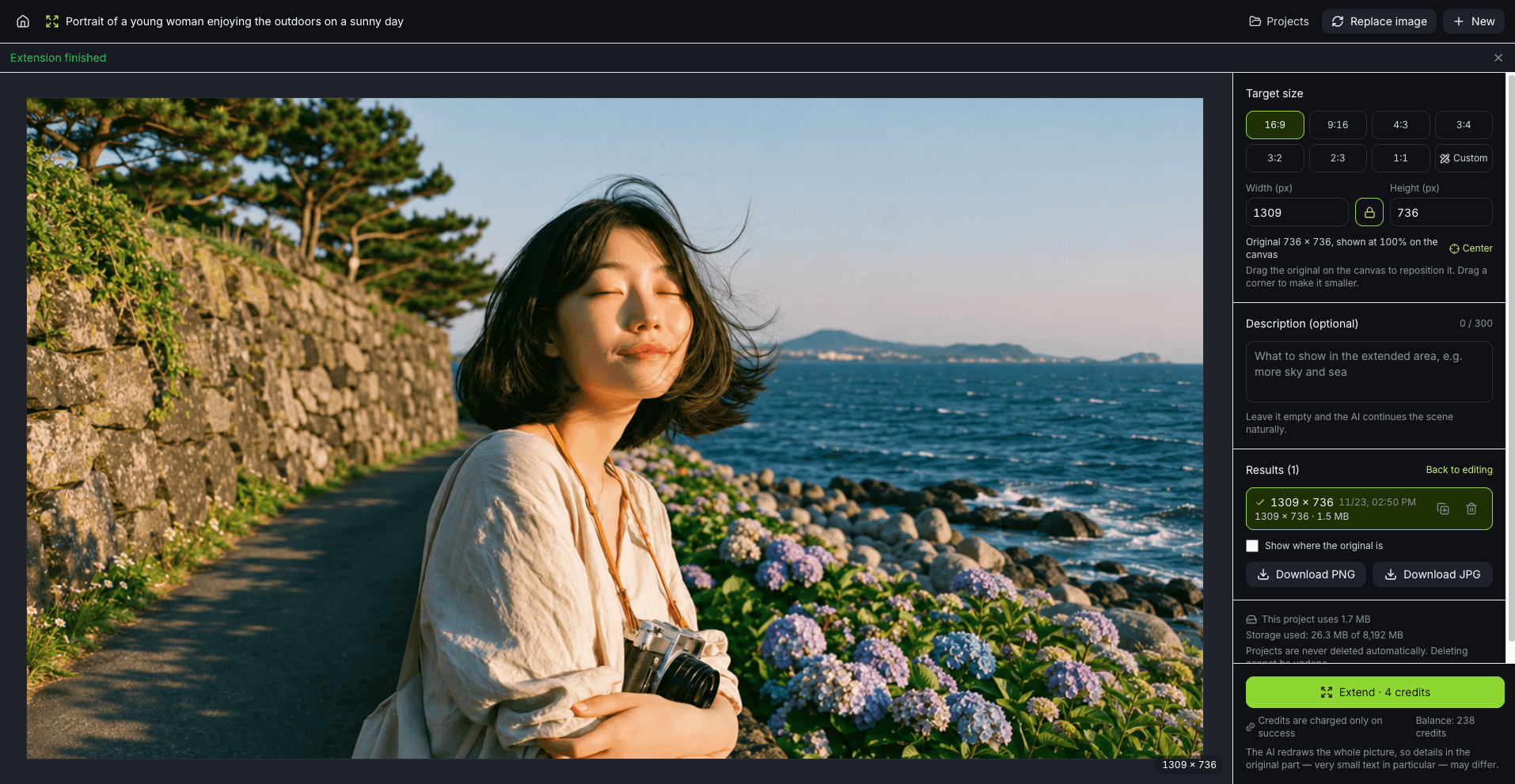
Extend an image in three steps
- 01
Upload an image
Drop in, paste or choose an image — JPG, PNG or WebP; the file size limit is shown in the tool. Uploading creates a project that keeps the original.
- 02
Set the size and extend
Pick a ratio or enter a width and height, drag the original on the canvas to decide which side gets extended, and add a short description if you like. The button shows the credits the run will use — then click Extend. A run usually takes 30–45 seconds; once it's submitted you can leave the page and find the result under Projects.
- 03
Review and download
Look over the result — turn on "Show where the original is" to see which parts were added — then download as PNG or JPG. You can also start a new project from a result to extend it further.
What you can do
Seven ratios, or your own size
Choose 16:9, 9:16, 4:3, 3:4, 3:2, 2:3 or 1:1, or enter a width and height (256–3840 px per side, aspect ratio up to 3:1). With a ratio selected, the default canvas is the smallest one of that ratio that holds the whole original without shrinking it, with the original centered. If the original already has that ratio, the canvas grows to 1.5 times its size and all four sides are filled.
Drag to choose where to extend
Drag the original on the canvas to reposition it, and drag a corner to make it smaller and leave more room to fill. The original must cover at least 25% of the canvas area — results suffer when it is smaller — and it can't be enlarged.
Describe what to add
Add a short description (up to 300 characters) of what should appear in the extended area, such as more sky and sea. Leave it empty and the AI continues the scene naturally. Descriptions go through content moderation.
Redrawn by AI, so the original part can change
The result is the model's full output, and the original part is redrawn too. Large subjects and large text stay essentially the same, but colors shift slightly and very small text may be altered. Portraits have not been specifically tested, and facial details may change. Compare with the original before using it for anything important.
Size shown up front, PNG or JPG
Output is capped at about 8.3 megapixels (longest side 3840 px). If the target canvas is larger, the whole picture is scaled down proportionally and the actual size is shown before you run it. A custom size within the limit, such as 1080×1920, comes out at exactly that size. The result is a PNG; download it as PNG or JPG.
Saved as projects, ready to extend again
The original, the canvas settings and every result are saved under Projects and are never deleted automatically. Start a new project from any result to use it as the new original and keep extending — going larger over several runs.
Where your image goes and how long it's kept
When you click Extend, the whole canvas (the original plus the empty area to fill) and any description you wrote are sent to a third-party AI model service located overseas for processing, and are used only to produce your result. Both the description and the generated result must pass content moderation. The original and every result are stored on our servers, under your Projects; they are never deleted automatically and stay until you delete the project. Only you can delete them, and deleting cannot be undone. See our Privacy Policy for details.
FAQ
- Does AI Image Extender cost anything?
- It uses credits per run, and there are no free daily runs. How many credits a run uses depends on the size and aspect ratio of the result; the amount is shown on the Extend button before you run it, and the figure in the tool is the one that applies. You are charged only on success: failed, canceled, timed-out and moderation-blocked runs cost nothing. Signing in is enough to upload images and create projects — no subscription is required — but running needs credits.
- Does the original part stay unchanged after extending?
- Not entirely. The AI redraws the whole picture: the result is the model's full output, and the original part is redrawn too. Large subjects and large text stay essentially the same, but colors shift slightly and very small text may be altered. Portraits have not been specifically tested, and facial details may change. When viewing a result you can turn on "Show where the original is". For anything important, compare with the original before you use it.
- How large can the result be? Which ratios and formats are supported?
- You can choose from seven ratios — 16:9, 9:16, 4:3, 3:4, 3:2, 2:3 and 1:1 — or enter a width and height (256–3840 px per side, aspect ratio up to 3:1). Output is capped at about 8.3 megapixels (longest side 3840 px): if the target canvas is larger, the whole picture is scaled down proportionally and the actual size is shown before you run it. You can upload JPG, PNG and WebP; the file size limit is shown in the tool. Images with a transparent background are placed on white. The result is a PNG, and you can download it as PNG or JPG.
- How do I choose which side to extend and what gets added?
- With a ratio selected, the original starts centered on the smallest canvas that holds all of it. If the original already has that ratio, the canvas grows to 1.5 times its size and all four sides are filled. Drag the original on the canvas to decide which side gets extended. Drag a corner to make the original smaller (it must cover at least 25% of the canvas area); it can't be enlarged. To say what should be added, write a short description (up to 300 characters); leave it empty and the scene continues naturally.
- Are my images stored? Who receives them?
- Yes, they are stored. The original, the canvas settings and every result are saved under your Projects; they are never deleted automatically, only you can delete them, and deleting cannot be undone. They count toward your account's storage. When you click Extend, the whole canvas (the original plus the empty area to fill) and any description you wrote are sent to a third-party AI model service located overseas, only to produce your result; both the description and the generated result must pass content moderation.
- How long does it take? Can I close the page?
- A run usually takes 30–45 seconds. Once it's submitted you can leave the page and find the result under Projects when it's done. You can cancel while it's processing, and a canceled run isn't charged.
- Can I extend further over several runs? Is there batch processing?
- Yes, you can extend in several runs: start a new project from any result to use it as the new original and keep extending; each run uses credits. You can also run the same project again with another ratio or position, and every result is kept. Batch processing, combining several images on one canvas, rotation, and redrawing or erasing only part of an image are not supported.
- Does it work on a phone?
- Yes. On a phone the canvas sits on top with the controls below, and you can upload, pick a ratio, extend and download.
More products
- Core toolApp Screenshots MockupStore screenshots, done in four stepsSee full features
- Companion toolAI ImagesFrontier models, every parameter exposedSee full features
- Companion toolAI Background RemoverRemove backgrounds in one click — even flyaway hairSee full features
- Companion toolAI Object RemoverBox people and clutter, and they're goneSee full features
- Companion toolAI Image UpscalerUpscale small or blurry images 2x or 4x, with sharper text and edgesSee full features
- Companion toolAI Image EditorSplit a picture into layers and rearrange itSee full features
- Companion toolAI ReplaceBrush over something, describe it, and swap it for something elseSee full features
- Companion toolDocument CleanerRemove patterns and shadows for clean, readable documentsSee full features
- Free toolDevice Mockup GeneratorPut images and videos into Apple devicesSee full features
- Free tool3D Device MockupPut screenshots and screen recordings on a 3D device you can rotateSee full features
- Free toolVideo to GIFTurn any clip into a looping GIFSee full features
- Free toolImage AnnotatorCrop, add text and pixelate sensitive details in one placeSee full features
Extend an image now
Get startedUses credits per run, charged only on success, as shown in the tool. Sign in to upload; running needs credits.