 Pixsolo
Free online photo filters
Upload an image and click a thumbnail to apply a filter: black & white, grayscale, sepia, vintage, Polaroid, Kodachrome, Technicolor, invert, sharpen, emboss, noise and more, 14 effects in all, each with adjustable strength. You can also fine-tune brightness, contrast, saturation and gamma on their own, or use Remove Color to turn a white or solid background transparent. The preview is rendered instantly on a smaller copy and matches the final result.
Free to use once you sign in. Uploads are stored temporarily and deleted after 2 hours
All 14 filters at a glance
The same sample photo with each filter applied. Click the matching thumbnail in the tool to apply that filter to your own image.

Original 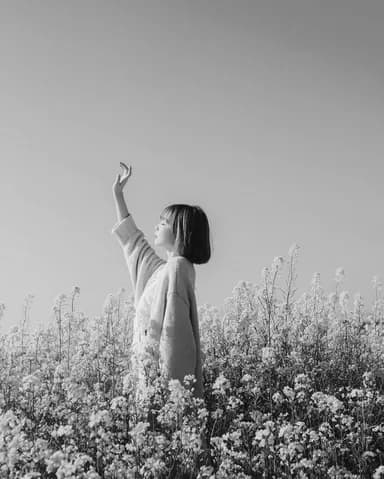
Grayscale 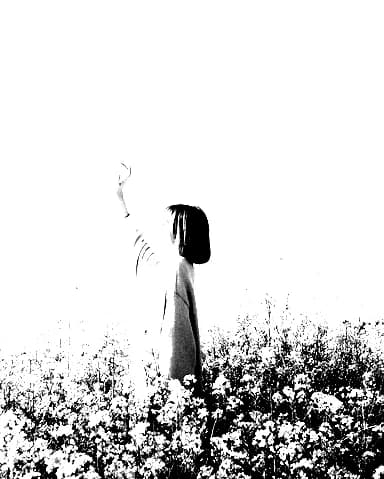
Black & White 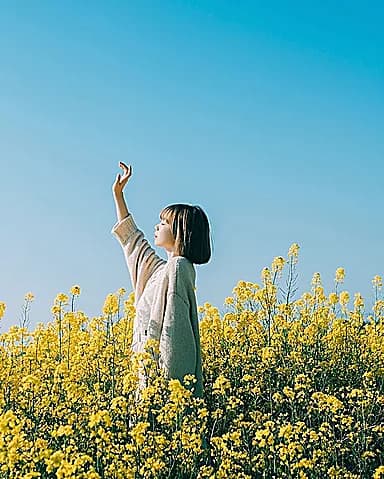
Sharpen 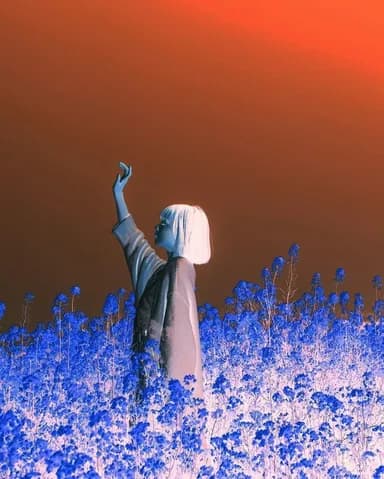
Invert 
Vintage 
Polaroid 
Kodachrome 
Technicolor 
Brownie 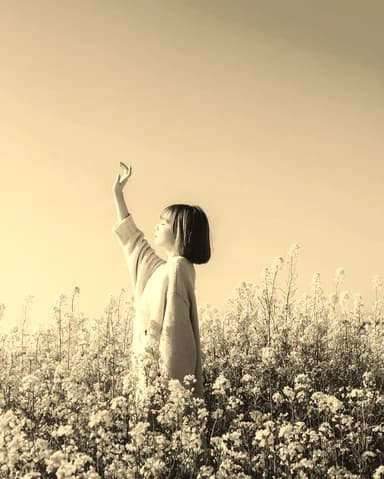
Sepia 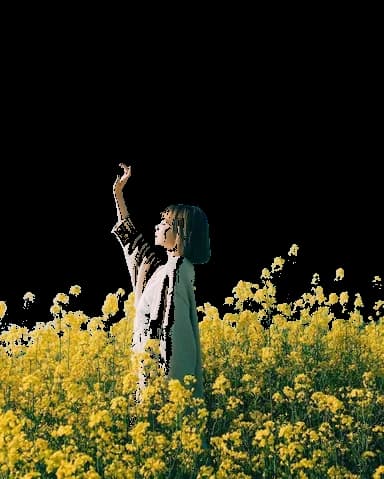
Remove Color 
Noise 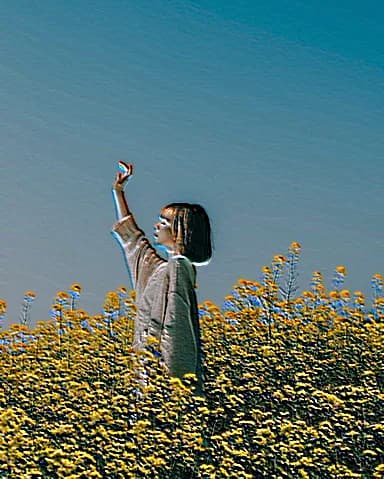
Emboss 
Blend
How it works
- 1
Choose an image
Click or drop an image.
- 2
Pick a filter
Click an effect thumbnail and drag the strength; adjust brightness, contrast or saturation if you like.
- 3
Apply and download
Click Apply and download the result. Not happy? Restore the original in one click.
Features
14 filters
Black & white, grayscale, sepia, vintage, Polaroid, Kodachrome, Technicolor, Brownie, invert, sharpen, emboss, noise, remove color and blend, with strength from 0 to 100%.
Light and color adjustments
Brightness, contrast, saturation and gamma, together with a filter or on their own.
White to transparent
Remove Color picks a color from the image and makes similar colors transparent, saved as PNG.
What you see is what you get
The preview and the download are made by the same processing, so the result matches what you saw.
Stored temporarily, deleted after 2 hours
Your image is used only for this edit. Originals and results are deleted automatically after 2 hours and download links work only for you. Date taken, camera model and GPS location are removed by default.
FAQ
- Can I stack several filters?
- One filter at a time, plus brightness, contrast, saturation and gamma. To add another filter, choose Continue with another tool after applying, then pick Photo Filters again.
- Do filters reduce image quality?
- The size stays the same. JPG output is re-encoded at high quality, so the difference is barely visible; choose PNG in the output settings if you need lossless.
- How do I make a white background transparent?
- Choose Remove Color, click Pick from image and then the background, and raise the tolerance until the whole background is gone. The result is saved as PNG.
- Can I undo a filter?
- Click Restore original in the tool to go back. Your original image is never changed; a new image is only created when you click Apply.
- Do animated GIFs work?
- Yes, but only the first frame is processed and the result is a still image.
More image tools
- Compress ImageMake JPG, PNG, WebP and GIF files smaller
- Resize ImageChange the size in pixels or percent
- Crop ImageCrop to a ratio or freely, down to the pixel
- Watermark ImageText or logo watermark: single, multiple or tiled
- Rotate ImageRotate by any angle, flip horizontally or vertically
- Convert to JPGTurn HEIC, PNG, WebP, PDF and more into JPG
- Convert to PNGTurn JPG, HEIC, WebP, PDF and more into PNG
- Blur ImageApply a Gaussian blur to the whole image
- Pixelate ImagePixelate, blur or cover parts of an image
- Merge ImagesCombine photos in a row, column or grid
Add a filter to your photo
Get startedFree to use once you sign in. Uploads are stored temporarily and deleted after 2 hours