 Pixsolo
Turn video clips into GIFs
Video to GIF is a free online tool from Pixsolo. Upload an MP4, MOV or WebM video, trim a clip on the timeline, crop it to one of 11 aspect ratios such as 1:1, 4:3, 16:9 and 9:16, resize it by the longest side from 1280 down to 320 px, and choose 5 to 30 fps, 32 to 256 colors, one of three dithering modes and a loop count. Then create the GIF and download it. Everything happens in your browser; your video is never uploaded.
Free to use once you sign in. Your video is processed in your browser and never uploaded.
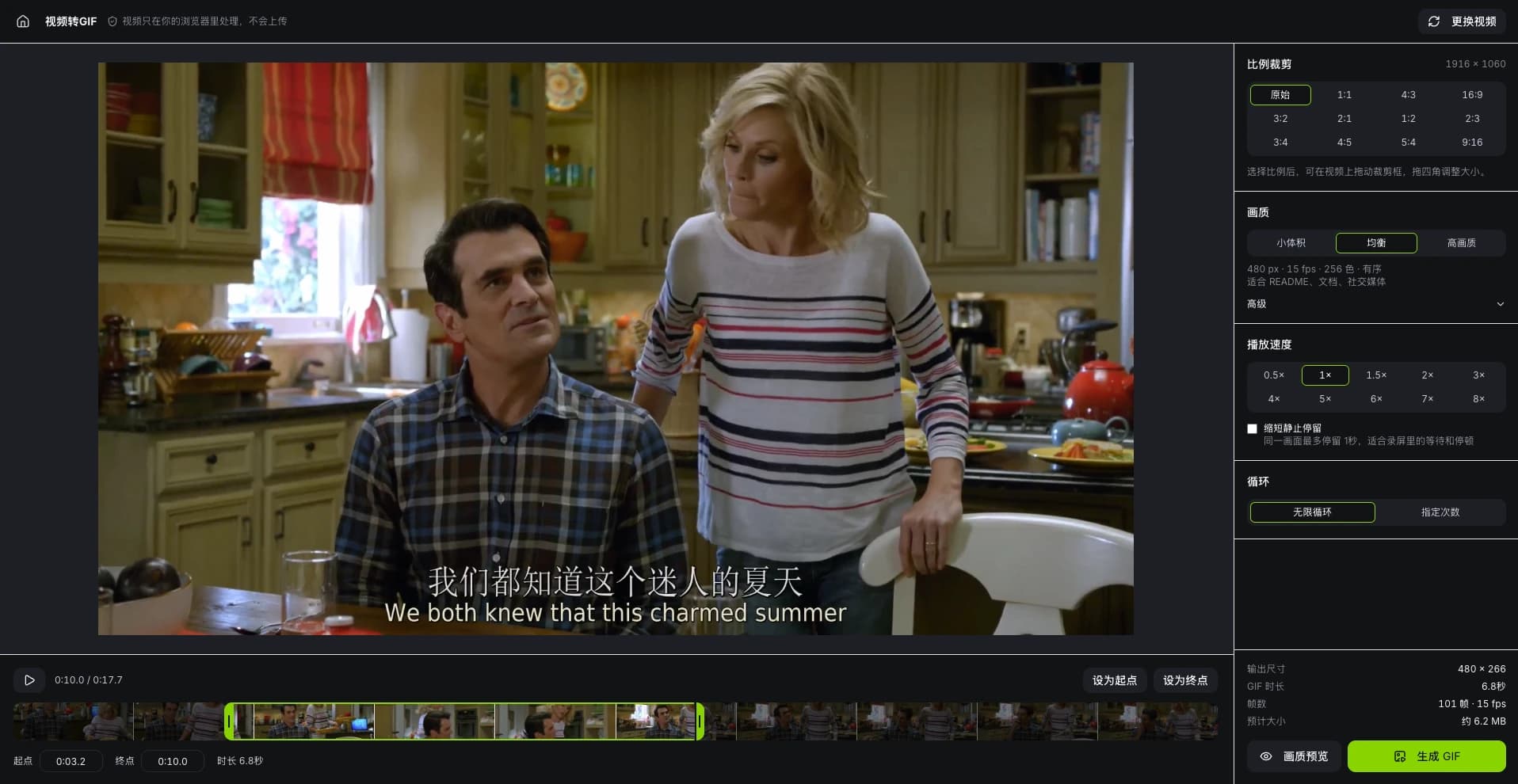
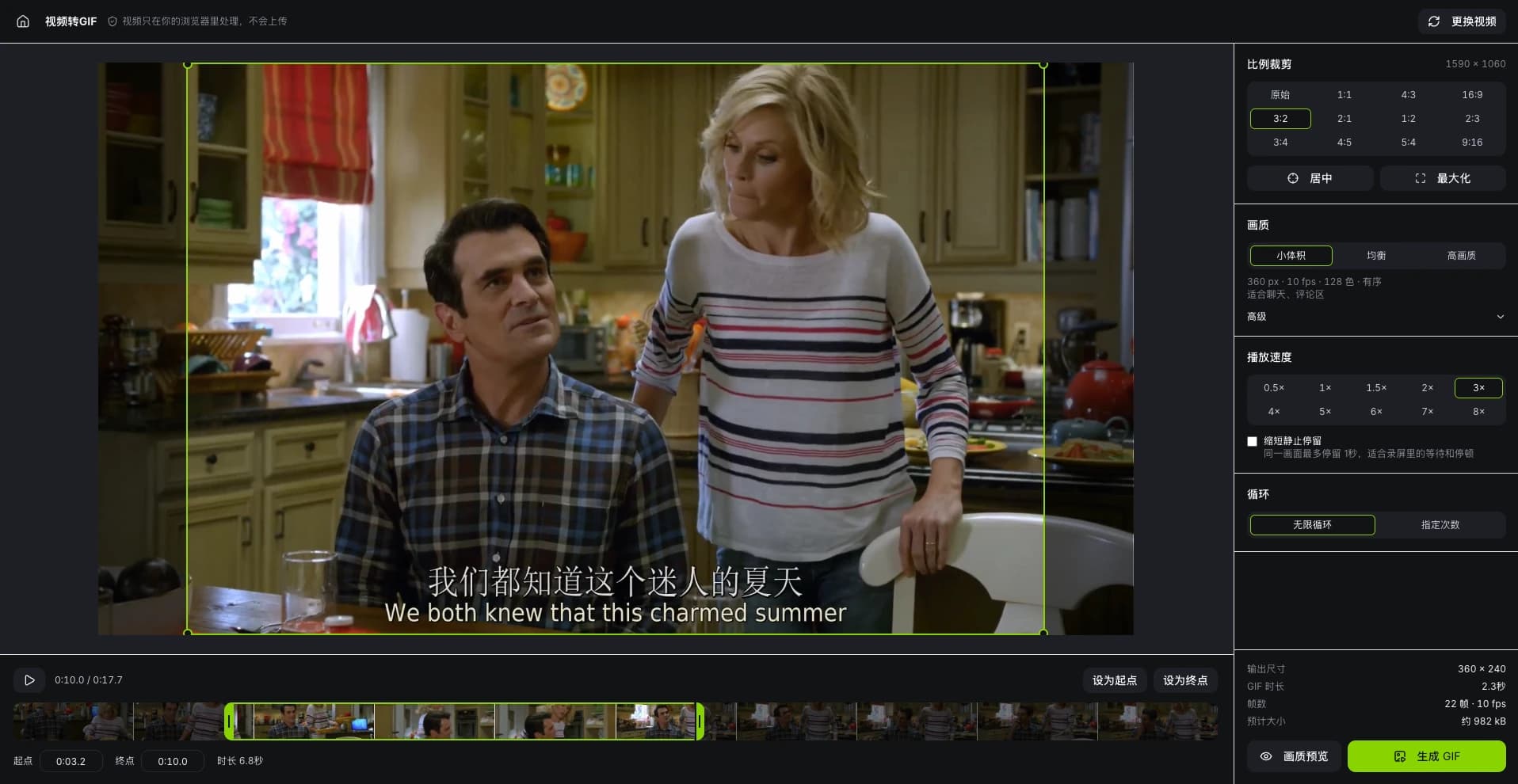
Turn a video into a GIF in three steps
- 01
Upload and trim
Drop in a video and drag both ends of the timeline to pick a clip, or type the start and end times.
- 02
Crop and choose quality
Pick an aspect ratio and drag the crop box. Small, Balanced and High set resolution, frame rate and colors in one click, or fine-tune each in Advanced.
- 03
Create and download
Check the estimated size and the single-frame preview, then create the GIF, watch the result and download it.
What you can do
Precise trimming
A thumbnail timeline with two handles, whole-clip dragging and keyboard nudging. You can also set the current frame as the start or end.
11 crop ratios
1:1, 4:3, 16:9, 3:2, 2:1, 1:2, 2:3, 3:4, 4:5, 5:4 and 9:16. Drag the crop box to move it and drag its corners to resize it.
Resolution and frame rate
Choose 1280, 800, 720, 480, 360 or 320 px for the longest side. Scaling keeps the proportions and never upscales. Frame rates run from 5 to 30.
Colors and dithering
256, 128, 64 or 32 colors with no dithering, ordered dithering or error diffusion. Preview a single frame before you create the GIF.
Speed and looping
0.5× to 8× speed, with an option to cut still moments in screen recordings down to 1 second. Loop forever or set a play count, written to the GIF standard.
Size under control
See the estimated file size before you start. Areas that don't change between frames are skipped, so still parts of a screen recording cost almost nothing.
Your video stays on your computer
Reading, trimming, cropping and GIF creation all happen locally in your browser. Nothing is uploaded to a server or saved, and everything is cleared when you close or refresh the page.
FAQ
- Is Video to GIF free?
- Yes. It costs no credits and the GIFs have no watermark. Just sign in to your Pixsolo account to start.
- Is my video uploaded?
- No. Your video is processed only in your browser. It never passes through a server and isn't saved; refreshing the page clears it.
- Which video formats and browsers are supported?
- MP4, MOV and WebM. Use the latest Chrome, Edge, Safari or Firefox on a computer. Some browsers and Windows PCs can't read the HEVC codec that iPhones often use; convert those videos to H.264 first.
- Why are GIFs so large, and how can I make them smaller?
- GIF compresses far less than video, so size, frame rate and length all multiply the file size. To shrink it, shorten the clip, lower the resolution or frame rate, use fewer colors, or switch to ordered dithering or no dithering. The estimated size is shown before you create the GIF.
- I set a play count. Why does it still loop forever in some places?
- The tool writes the play count to the GIF standard, and major browsers respect it. Some chat apps and websites ignore the setting and always loop; that is how they display GIFs.
More products
- Core toolApp Screenshots MockupStore screenshots, done in four stepsSee full features
- Companion toolAI ImagesFrontier models, every parameter exposedSee full features
- Companion toolRemove BackgroundRemove backgrounds in one click, at full resolutionSee full features
- Companion toolDocument CleanerRemove patterns and shadows for clean, readable documentsSee full features
- Companion toolObject RemoverBox people and clutter, and they're goneSee full features
- Free toolDevice Mockup GeneratorPut images and videos into Apple devicesSee full features
- Free tool3D Device MockupPut screenshots and screen recordings on a 3D phone you can rotateSee full features
- Free toolPhoto EditorCrop, add text and pixelate sensitive details in one placeSee full features
Turn your clip into a GIF
Get startedFree to use once you sign in. Your video is processed in your browser and never uploaded.