 Pixsolo
Remove Image Backgrounds Online
Remove Background is Pixsolo's cutout tool. Upload a JPG, PNG, WebP, HEIC or other photo, click Remove background, and the subject — a person, product, animal and more — is found automatically and everything behind it removed. Keep the transparent background or switch to white, black or any solid color, trim the empty space around the subject with the padding you want, and export PNG, WebP or JPG at the same resolution as the original. Great for product shots on white, profile pictures, posters and design assets, and it works on your phone too.
Free cutouts every day; after that, each image uses credits — the tool shows the current numbers. Sign in to start
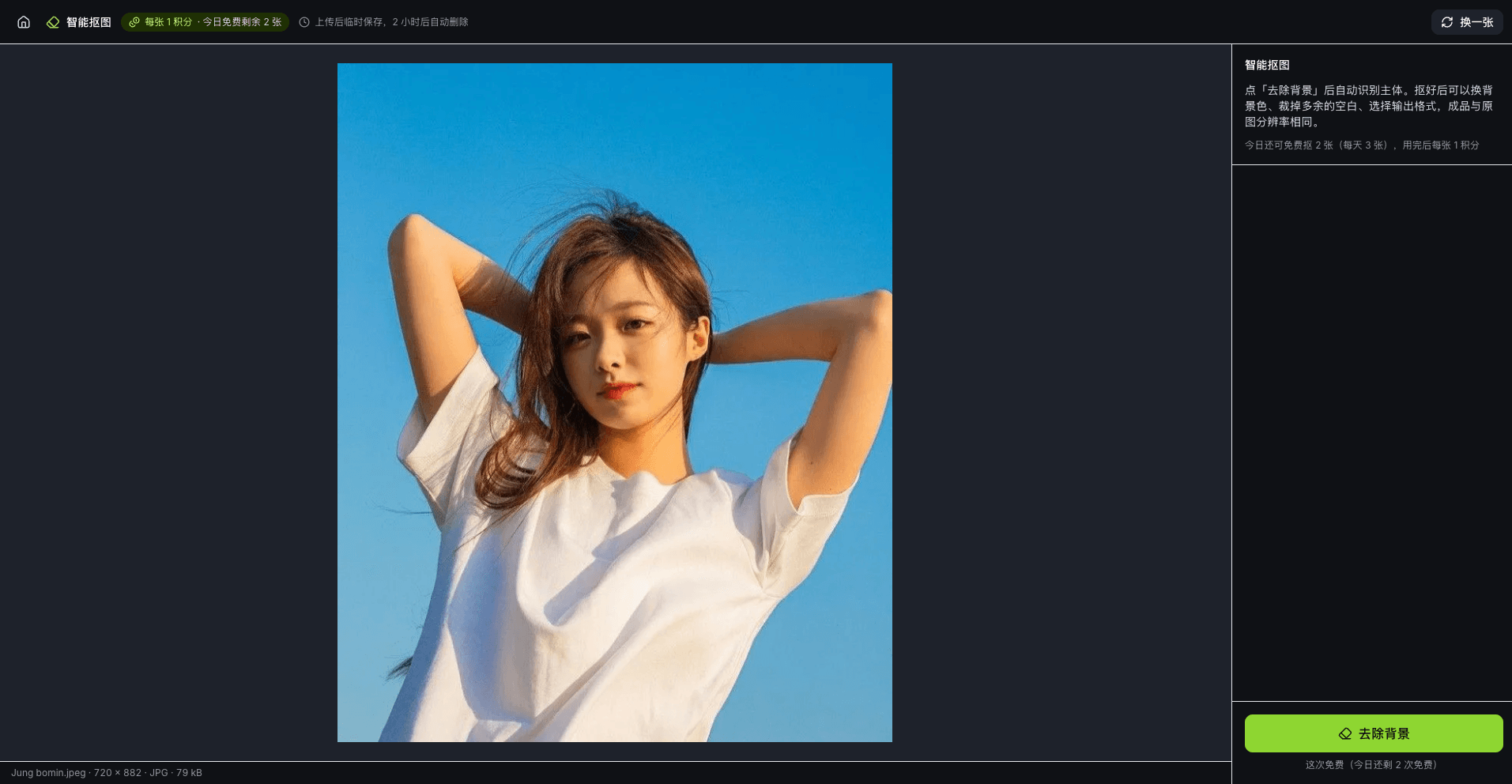
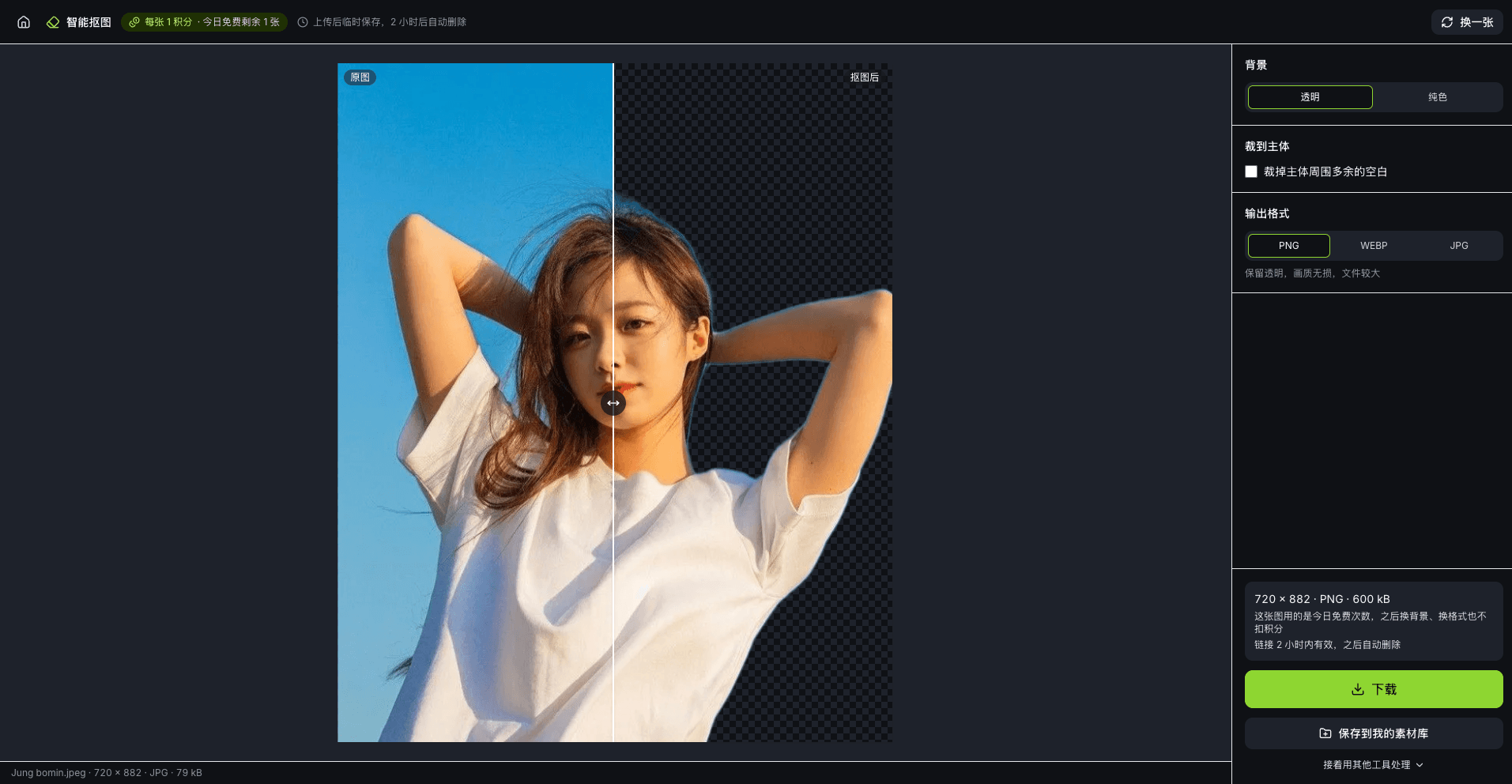
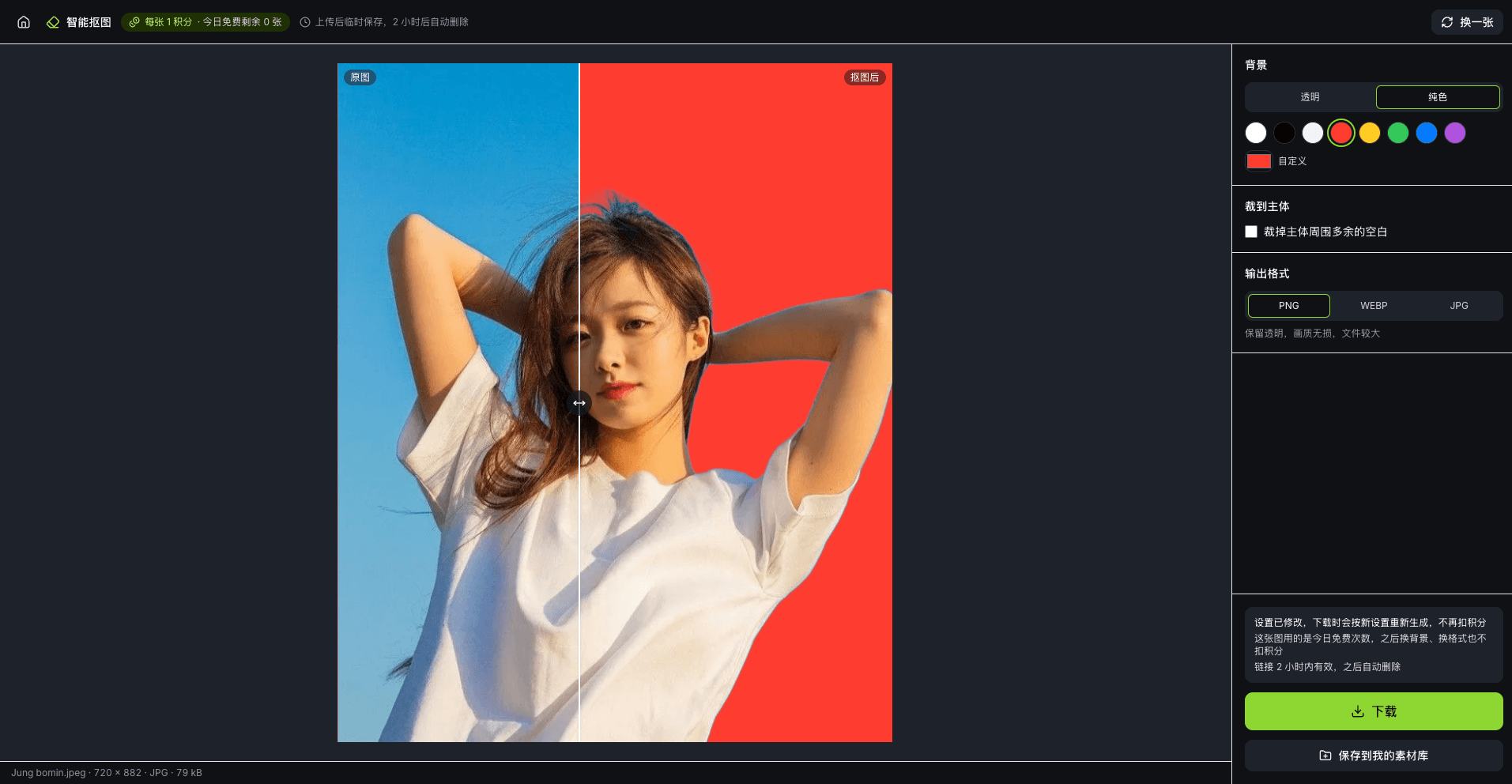
Remove a background in three steps
- 01
Upload an image
Click to choose or drop in an image — JPG, PNG, WebP, GIF, HEIC, AVIF, BMP or TIFF. On a phone, pick straight from your photo library.
- 02
Remove the background
Click Remove background. The subject is found and cut out automatically, and in a few seconds you'll see it on a transparent background, ready to compare with the original.
- 03
Change the background and download
Choose transparent or a solid color, crop to the subject and set the padding if you like, pick a format and download — or save it to My Library.
What you can do
Automatic subject detection
People, products, animals and other common subjects are detected automatically — no tracing or brushing by hand.
Transparent background
Transparent by default. PNG and WebP both keep the transparency, so you can drop the cutout straight onto a poster, product page or slide.
Solid-color background
Switch to white, black or another common color in one click, or pick any color you like — handy for product shots on white and profile pictures.
Crop to subject
Trim the empty space around the subject automatically, with padding set in pixels or as a percentage of the subject's longer side.
Original resolution
The result is the same size as the photo you uploaded — cutting it out doesn't shrink it.
Save to My Library
Save the cutout together with the original to My Library in one click and use them right away in the App Screenshots Mockup editor, or continue in another image tool.
Where your image goes and how long it's kept
When you click Remove background, the image is sent to Baidu AI Cloud (servers in mainland China) to detect the subject, and is used only to produce your cutout. The original and the result are kept in temporary storage for a few hours and then deleted automatically — the tool shows exactly how long. Only the cutouts and originals you save to My Library are kept, until you delete them. See our Privacy Policy for details.
FAQ
- Does Remove Background cost anything?
- Every account gets a few free cutouts each day. After that, each image uses credits; the tool shows how many free cutouts you have left today and how many credits an image costs. A cutout only counts when a subject is found — nothing is charged if detection fails, and changing the background or format of the same image, or downloading it again, costs nothing extra.
- Can I use it without a subscription?
- Yes. Sign in and your daily free cutouts are ready to use. Once they're used up you'll need credits, which come with a subscription plan.
- Which formats are supported, and how large is the result?
- You can upload JPG, PNG, WebP, GIF (first frame only), HEIC, AVIF, BMP and TIFF; the tool shows the file size limit. Results export as PNG, WebP or JPG at the same resolution as the original. JPG doesn't support transparency, so transparent areas become white.
- Are my images stored?
- The original and the result are deleted automatically after a few hours in temporary storage. During a cutout the image is sent to Baidu AI Cloud (servers in mainland China) to detect the subject, only to produce your result. Only the cutouts and originals you save to My Library are kept, until you delete them.
- Which images give the best results?
- Images where the subject is clear and stands out from the background work best. If the subject is very small, blends into the background, or there's no clear subject at all, detection may miss it. If no subject is found, nothing is charged.
- Does it work on a phone?
- Yes. On a phone the image sits on top with the settings below, you can pick photos straight from your library, and HEIC photos taken on an iPhone open directly.
More products
- Core toolApp Screenshots MockupStore screenshots, done in four stepsSee full features
- Companion toolAI ImagesFrontier models, every parameter exposedSee full features
- Companion toolDocument CleanerRemove patterns and shadows for clean, readable documentsSee full features
- Companion toolObject RemoverBox people and clutter, and they're goneSee full features
- Free toolDevice Mockup GeneratorPut images and videos into Apple devicesSee full features
- Free tool3D Device MockupPut screenshots and screen recordings on a 3D phone you can rotateSee full features
- Free toolVideo to GIFTurn any clip into a looping GIFSee full features
- Free toolPhoto EditorCrop, add text and pixelate sensitive details in one placeSee full features
Remove a background now
Get startedFree cutouts every day; after that, each image uses credits — the tool shows the current numbers. Sign in to start