 Pixsolo
Merge images online
Combine several images into one. Arrange them in a row, a column or a grid with one click and adjust the spacing, margins and corner radius, or drag, resize and crop each image freely on the canvas. Add captions, numbered badges, arrows and other shapes, and mosaic to make tutorial steps, before-and-after comparisons, product images or a photo collage. Pick a 9:16, 16:9, 3:4, 4:3 or 1:1 board or a custom size, with a solid or transparent background. When you export, our server rebuilds the image from your originals, so the result is sharp however small the preview on the canvas is.
Free to use once you sign in. Uploads are stored temporarily and deleted after 2 hours
Three ways to combine
One click arranges everything, and you can still move and resize each image afterwards. Here is the same set of sample photos in each layout.
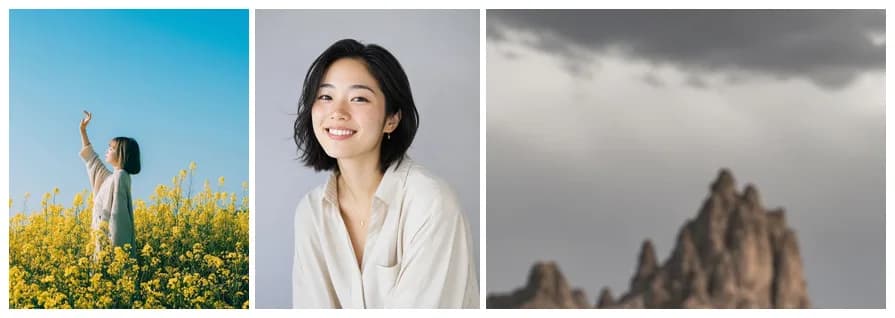
Row
Equal heights side by side, each photo keeping its proportions. Great for before-and-after shots and screenshots.
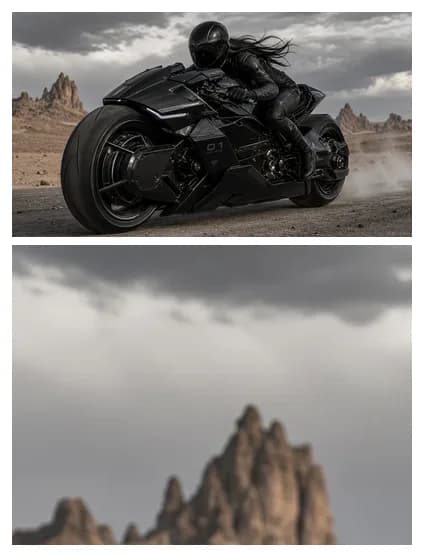
Column
Equal widths stacked top to bottom. Great for long screenshots, chats and step-by-step guides.
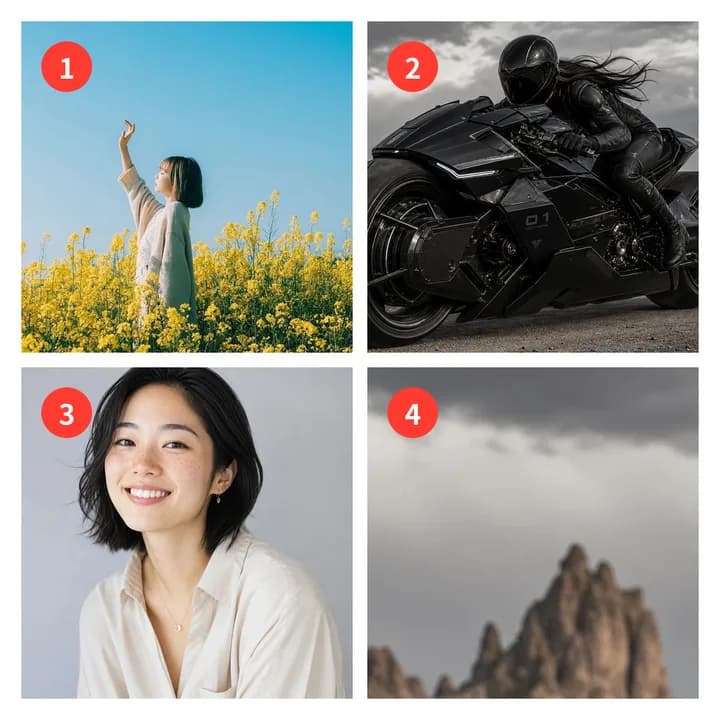
Grid
Equal cells with each photo cropped to fill its cell, in 1 to 5 columns. Add numbers and you have a step-by-step image.
How it works
- 1
Add images
Select several at once, up to 20, in JPG, PNG, WebP or HEIC.
- 2
Arrange and edit
Click Row, Column or Grid, then drag to fine-tune; add text, numbers, shapes or mosaic if you need them.
- 3
Export and download
Pick an output format, click Export, check the result and download it.
Features
Quick layout
Row, column and grid layouts with adjustable spacing, margins and corner radius; grids from 1 to 5 columns.
Free editing
Drag with snapping guides, resize from the corners, crop from the edges, double-click to reposition a photo in its frame, and change the layer order.
Text, numbers, shapes and mosaic
Multi-line text with your choice of font, color and background; numbers from 1 to 99 or A to Z that count up; lines, arrows, rectangles and circles to point things out; mosaic to hide faces or phone numbers.
Full-resolution export
The canvas previews smaller copies; the server rebuilds the result from your originals as JPG, PNG or WebP, with PNG for transparent backgrounds.
Stored temporarily, deleted after 2 hours
Your image is used only for this edit. Originals and results are deleted automatically after 2 hours and download links work only for you. Date taken, camera model and GPS location are removed by default.
FAQ
- How many images can I merge?
- Up to 20 images at a time, each up to 20 MB, on a board up to 8192 pixels per side.
- Will the merged image be blurry?
- No. The server samples your original images when you export, so sharpness depends only on the board size and how large each image is on it. The tool warns you if an image is enlarged beyond its original size.
- What if I close the page halfway?
- Your work is saved automatically in this browser, and you can restore it when you come back. Uploaded images are deleted after 2 hours; after that, upload them again.
- Does it work on a phone?
- Yes. On a phone the canvas sits on top with layers and properties below, and you can drag and pinch to zoom.
- Can I make a collage with a transparent background?
- Yes. Tick Transparent background before exporting; the result is saved as PNG and empty areas stay transparent.
More image tools
- Compress ImageMake JPG, PNG, WebP and GIF files smaller
- Resize ImageChange the size in pixels or percent
- Crop ImageCrop to a ratio or freely, down to the pixel
- Watermark ImageText or logo watermark: single, multiple or tiled
- Rotate ImageRotate by any angle, flip horizontally or vertically
- Convert to JPGTurn HEIC, PNG, WebP, PDF and more into JPG
- Convert to PNGTurn JPG, HEIC, WebP, PDF and more into PNG
- Blur ImageApply a Gaussian blur to the whole image
- Pixelate ImagePixelate, blur or cover parts of an image
- Photo Filters14 filters such as black & white, vintage and sepia
Merge your images into one
Get startedFree to use once you sign in. Uploads are stored temporarily and deleted after 2 hours