 Pixsolo
AI Replace online: brush over an object and swap it
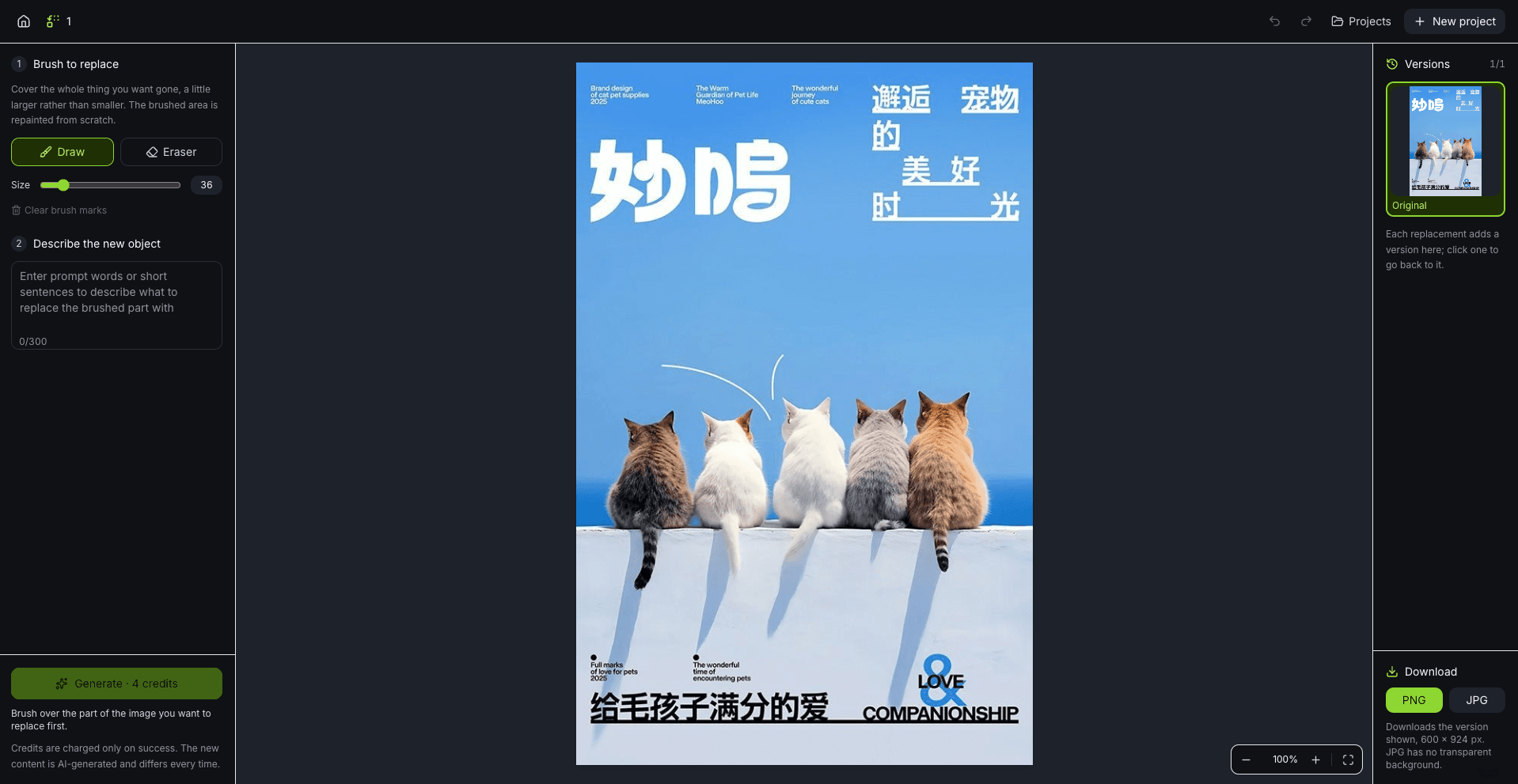
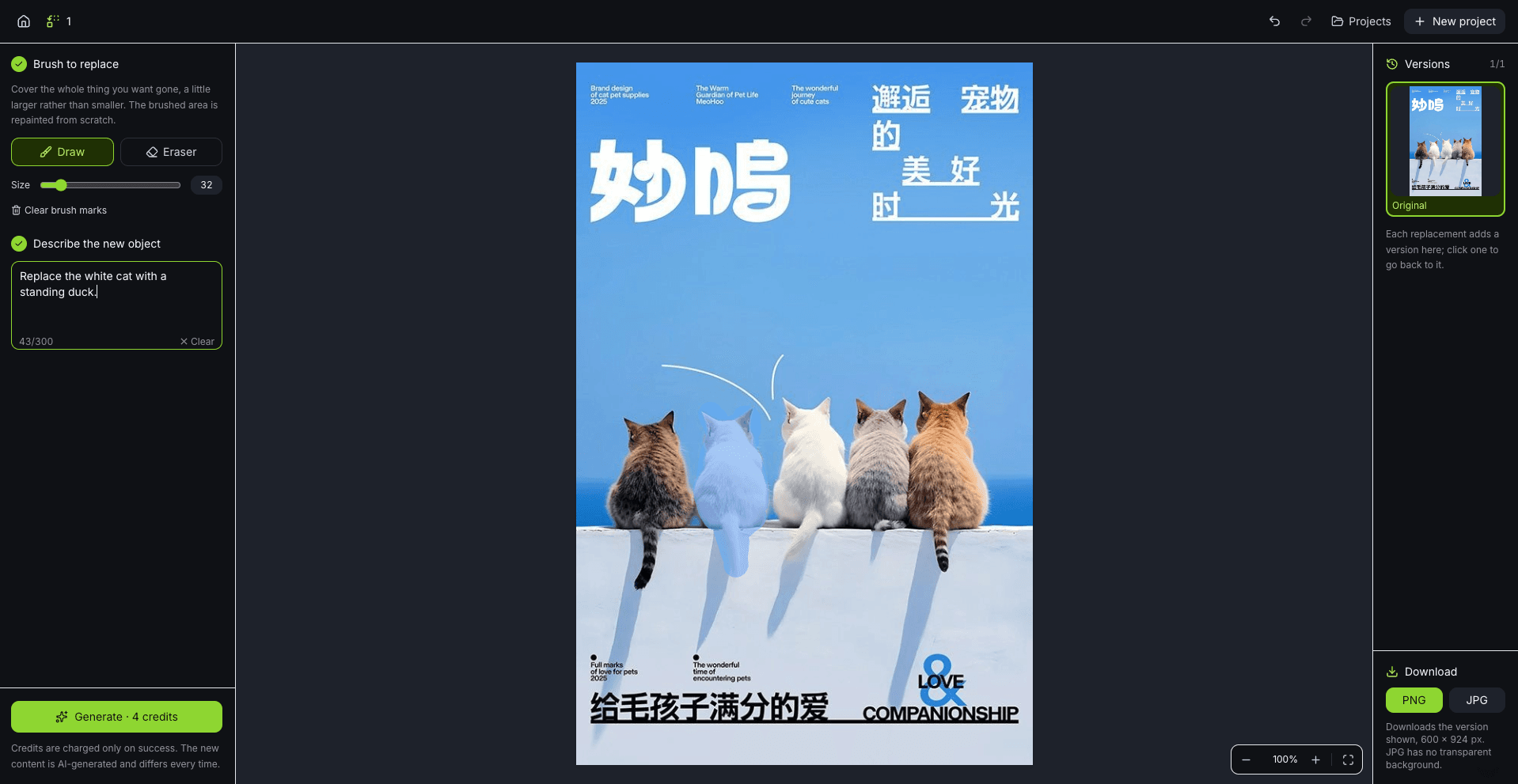
AI Replace is Pixsolo's tool for repainting part of an image. Upload a JPG, PNG or WebP image (or pick one from your assets), cover the thing you want gone with the brush, wipe off stray marks with the eraser, and set the brush size with the slider. Then type a short description of what the brushed area should become, such as "a yellow lemon" or "a small puppy sitting down", and click Generate. An AI image model paints the new object in that spot and matches its lighting, perspective and style to the surroundings. Only the brushed area is repainted; the picture away from it keeps its original pixels, so other objects and text do not change. Brush an empty area and you can add something that was never there. Each replacement adds a version, so you can go back to the original or any earlier version and continue from there. Hold Ctrl and scroll to zoom, or type a zoom percentage in the bottom-right corner. The canvas is at most 3840 px on its longest side; larger images are scaled down before editing. The original and every version are saved in your Projects.
Credits are charged per replacement, only on success, as shown in the tool. Sign in to upload and brush; generating needs credits
Replace something in your image in three steps
- 01
Upload an image
Drop, paste or click to choose an image, or pick one from your assets. JPG, PNG and WebP are supported; the size limit is shown in the tool. Uploading creates a project and opens the editor.
- 02
Brush and describe
Cover the whole thing you want gone with the brush, a little larger rather than smaller. Wipe off extra marks with the eraser, change the brush size with the slider, and undo any stroke. Then describe what to replace it with. The button shows the credits this run will cost.
- 03
Generate and download
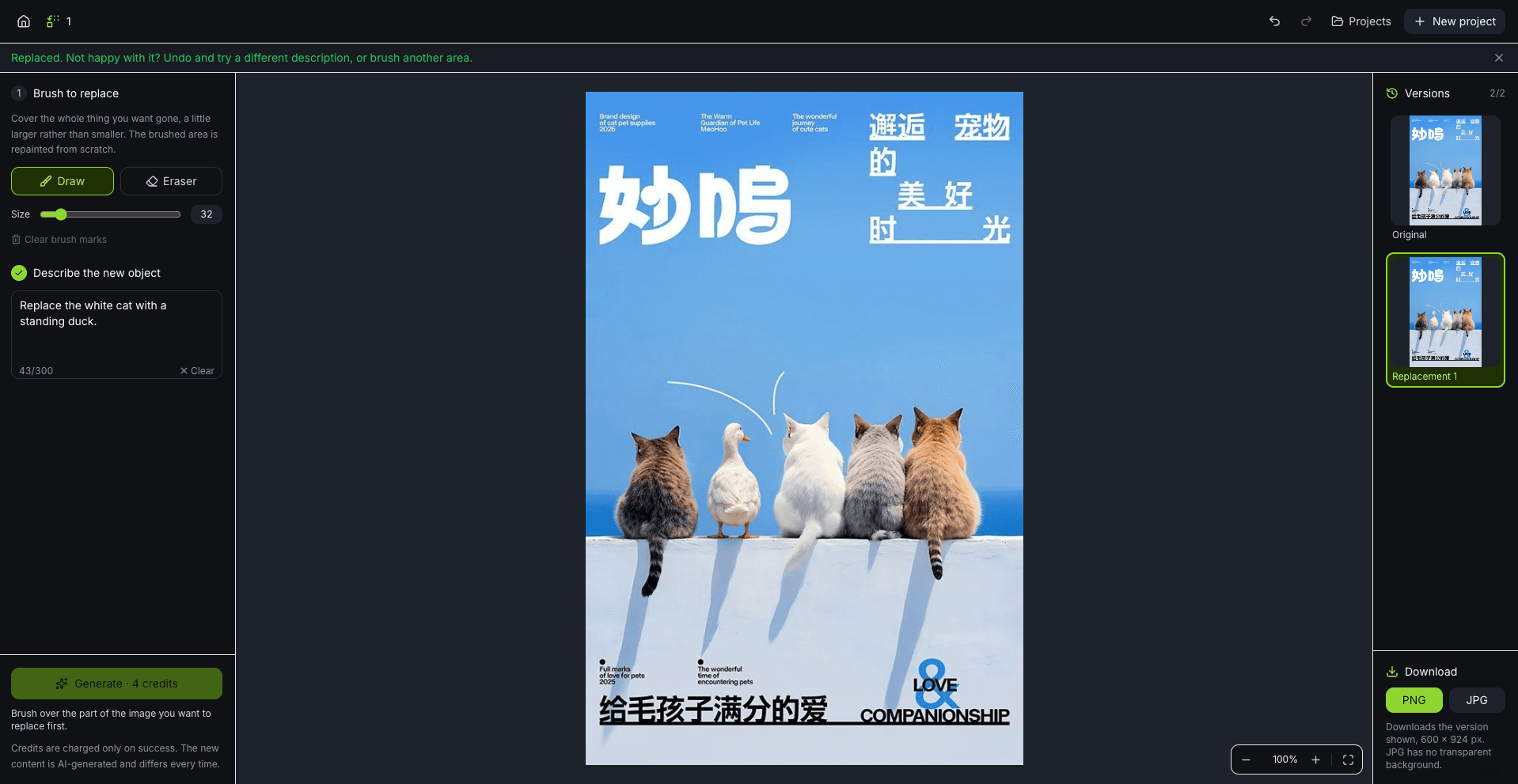
Click Generate. A run usually takes thirty seconds to a bit over a minute; you can leave the page and the result will appear when it is ready. Not happy? Undo and try a different description, or brush another area. Download a PNG or JPG when you are done.
What it can do
Brush exactly what you want changed
No boxes and no cutouts: whatever you brush is what gets replaced, in any shape. The eraser removes extra marks, the slider sets the brush size, and the cursor becomes a circle the size of the brush. Every stroke can be undone and redone.
Describe the new object in a sentence
Type prompt words or a short sentence, such as "a red apple" or "a penguin standing with its back to the camera". The more specific you are, the closer the result. AI matches the new object to the lighting, perspective and style around it.
Only the brushed area changes
Only the brushed area is repainted. The picture away from it keeps its original pixels, so other objects and text stay as they were. When the new object comes out slightly larger than the brushed area, the narrow band right next to it is replaced too, so the object is not cut off. Replacing many times does not degrade the image.
Add things that were never there
The brushed area does not have to contain anything. Brush an empty patch of sky or table, describe what to add, such as "a red hot-air balloon", and AI paints it there.
Every version is kept
Each replacement adds a version to the list on the right. Click one to go back to the original or any earlier version and continue from there. Undoing a replacement returns to the previous version and brings your brush marks back, so you can retry with a different description.
Saved in Projects, download PNG or JPG
The original and every version are saved in your Projects and are never deleted automatically, so you can come back and continue. The download is the version on screen, at the canvas size; PNG keeps a transparent background and JPG gets a white one.
Where your image goes and how long it is kept
When you generate, a crop of the picture around the brushed area (with the brushed area painted a solid color first) and your description are sent to a third-party AI model service located outside mainland China, solely to produce the result. The whole image is not sent unless your brush marks cover most of it. Your description and the generated result both go through content moderation. The original, the masks you brush and every version are stored on our servers in your Projects and are never deleted automatically; only you can delete them, and deletion cannot be undone. See the Privacy Policy for details.
FAQ
- Is AI Replace free?
- Uploading, brushing, switching versions and downloading cost no credits. Each generation costs a fixed number of credits; there are no free daily runs. The amount is shown on the button before you generate, and the tool is the reference. You are charged only on success: failed, canceled, timed-out or moderation-blocked runs cost nothing. You can upload and brush once signed in, with no subscription required; generating needs credits.
- Does the rest of the image change after a replacement?
- The picture away from the brushed area does not change; it keeps the original pixels. What changes is the brushed area and the narrow band right next to it: when AI draws the new object slightly larger than the brushed area, or the old object left a shadow beside it, that band is replaced as well.
- How should I brush?
- Cover the whole thing you want gone, a little larger rather than smaller. If you brush only part of an object, the new object is painted inside the old one and the uncovered edges remain. To replace something with a bigger object, brush a bigger area. The brushed area has an upper limit and cannot cover most of the image.
- Can I recolor a piece of clothing or change a small detail?
- Not really. The brushed area is repainted from scratch and AI does not see what was there, so this replaces a thing with another thing rather than editing the existing one. For a change that depends on the original, such as "make this shirt red", the cut of the shirt will most likely change too.
- What if I am not happy with the result?
- Undo to return to the previous version; your brush marks come back, so you can adjust the description or the brushed area and generate again. AI has some randomness, so the same marks and description give a different result each time. Every generation is charged separately and undoing does not refund credits. All earlier versions stay in the list on the right and you can switch back at any time.
- How large can the image be, and what can I download?
- You can upload JPG, PNG and WebP; the file size limit is shown in the tool. The canvas is at most 3840 px on its longest side (about 8.3 megapixels); larger images are scaled down before editing and the original file is kept in the project. The download is the version on screen at the canvas size, as PNG or JPG.
- Is my image stored, and who receives it?
- Yes, it is stored. The original, the masks you brush and every version are kept in your Projects, are never deleted automatically, and can only be deleted by you; deletion cannot be undone, and they count toward your storage. When you generate, a crop of the picture around the brushed area and your description are sent to a third-party AI model service located outside mainland China, solely to produce the result; your description and the generated result both go through content moderation.
- How long does it take? Can I close the page? Does it work on a phone?
- A replacement usually takes thirty seconds to a bit over a minute. You can leave the page after submitting; the result is saved in the project and appears the next time you open it. You can cancel while it is running, and a canceled run is not charged. Only one replacement can run at a time. On a phone you can upload, brush with your finger, generate and download, and zoom with the buttons in the bottom-right corner; fine brushing is easier on a computer.
More products
- Core toolApp Screenshots MockupStore screenshots, done in four stepsSee full features
- Companion toolAI ImagesFrontier models, every parameter exposedSee full features
- Companion toolAI Background RemoverRemove backgrounds in one click — even flyaway hairSee full features
- Companion toolAI Object RemoverBox people and clutter, and they're goneSee full features
- Companion toolAI Image UpscalerUpscale small or blurry images 2x or 4x, with sharper text and edgesSee full features
- Companion toolAI Image ExtenderExtend a picture beyond its borders — AI fills in the new areaSee full features
- Companion toolAI Image EditorSplit a picture into layers and rearrange itSee full features
- Companion toolDocument CleanerRemove patterns and shadows for clean, readable documentsSee full features
- Free toolDevice Mockup GeneratorPut images and videos into Apple devicesSee full features
- Free tool3D Device MockupPut screenshots and screen recordings on a 3D device you can rotateSee full features
- Free toolVideo to GIFTurn any clip into a looping GIFSee full features
- Free toolImage AnnotatorCrop, add text and pixelate sensitive details in one placeSee full features
Replace something in your image now
Get startedCredits are charged per replacement, only on success, as shown in the tool. Sign in to upload and brush; generating needs credits