 Pixsolo
AI image editor online: split a picture into layers and rearrange it
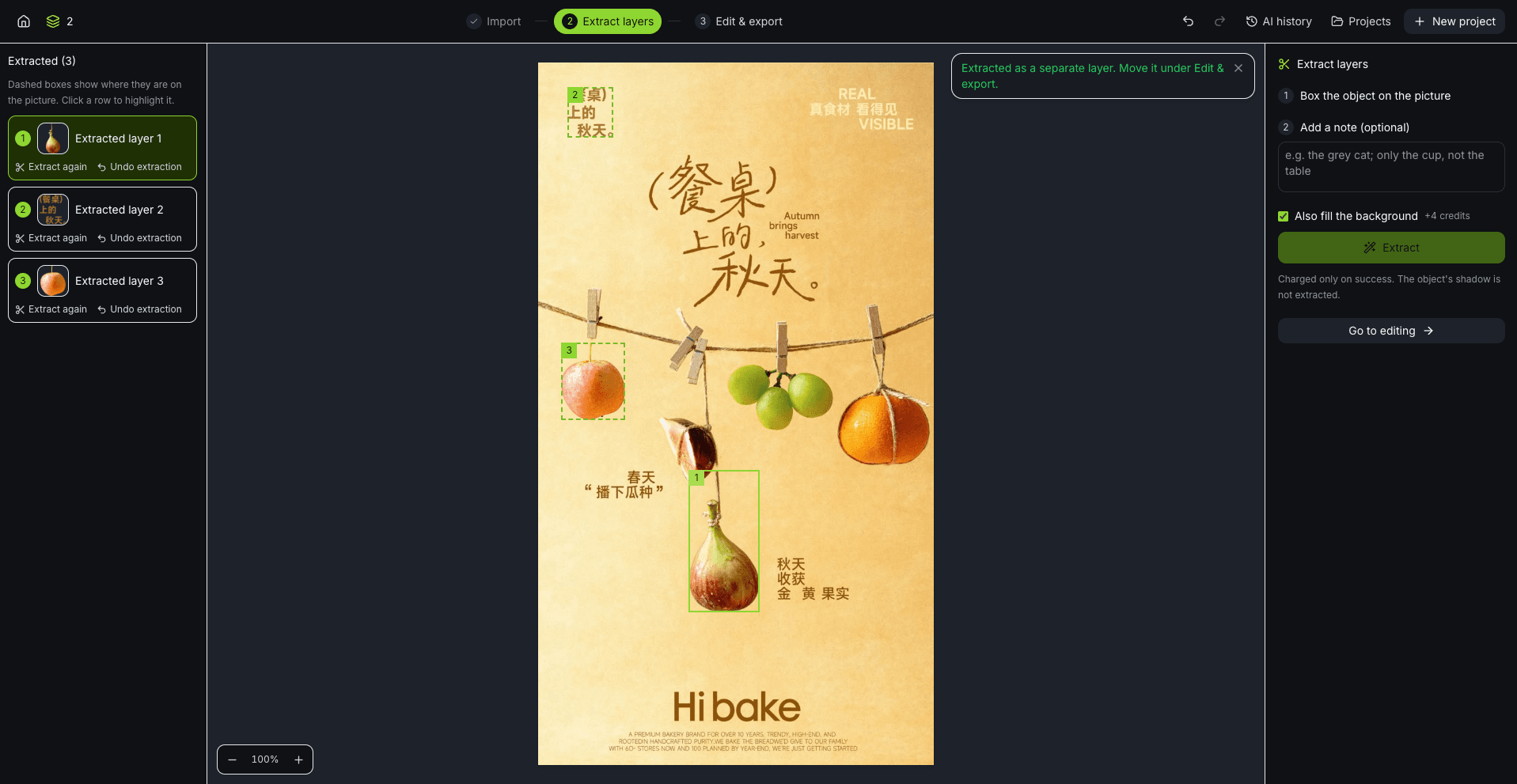
AI Image Editor is Pixsolo's layer tool. Import a JPG, PNG or WebP image (or pick one from your own assets), drag a box around the object you want on the canvas, or just describe it, and an AI image model cuts it out as a separate layer with a transparent background and repaints the spot it came from so the background continues naturally. Filling the background takes only the spot the object was removed from; the rest of the picture keeps the original pixels exactly, so other objects and text do not change. Elements such as titles and icons on a poster can be boxed and extracted as objects too, becoming image layers. Layers you have already extracted are outlined with dashed boxes on the picture and listed on the left. Then move, resize and rotate these layers in the layer editor, add your own text, images and shapes, change their stacking order, and export all layers merged as PNG, JPG or WebP. The extraction step is optional — you can use the tool simply as a layer editor. The canvas is at most 3840 px on its longest side; larger images are scaled down before editing. Layers, imported images and every AI result are saved under Projects.
Extraction uses credits per run, charged only on success, as shown in the tool. Sign in to import and edit; running AI needs credits.
Split a picture into layers in three steps
- 01
Import an image
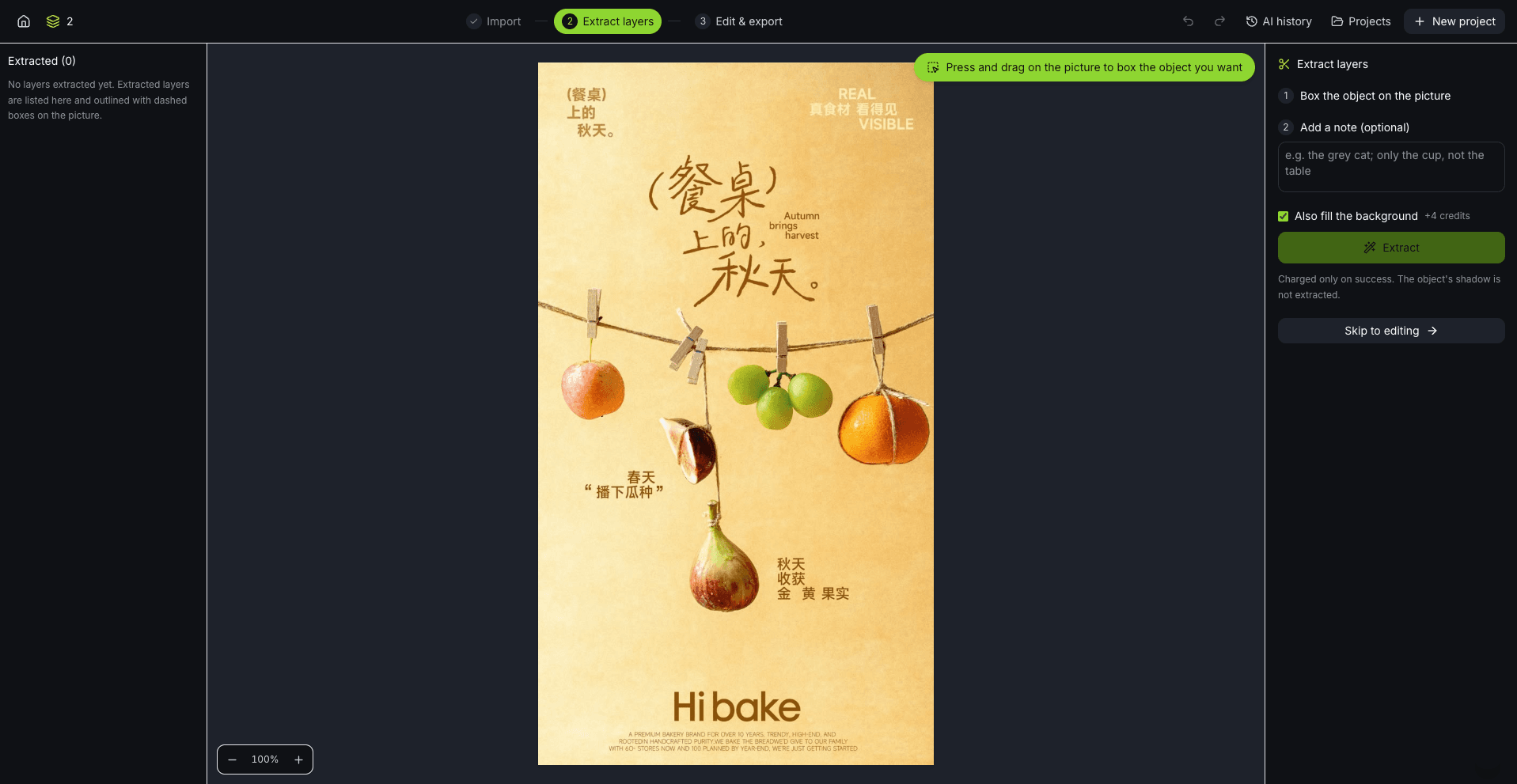
Drop, paste or click to choose an image, or pick one from your own assets. JPG, PNG and WebP are supported; the size limit is shown on the tool page. Importing creates a project, and the image becomes its first layer.
- 02
Extract layers
Drag a box around an object on the canvas, or write a short description. The button shows the most credits this run can use; then click Extract. AI cuts the object out as a separate layer and fills the background, which usually takes from half a minute to a little over a minute. You can leave the page after submitting — the result is placed on the canvas automatically when it is ready. This step is optional and you can come back to it at any time.
- 03
Edit and export
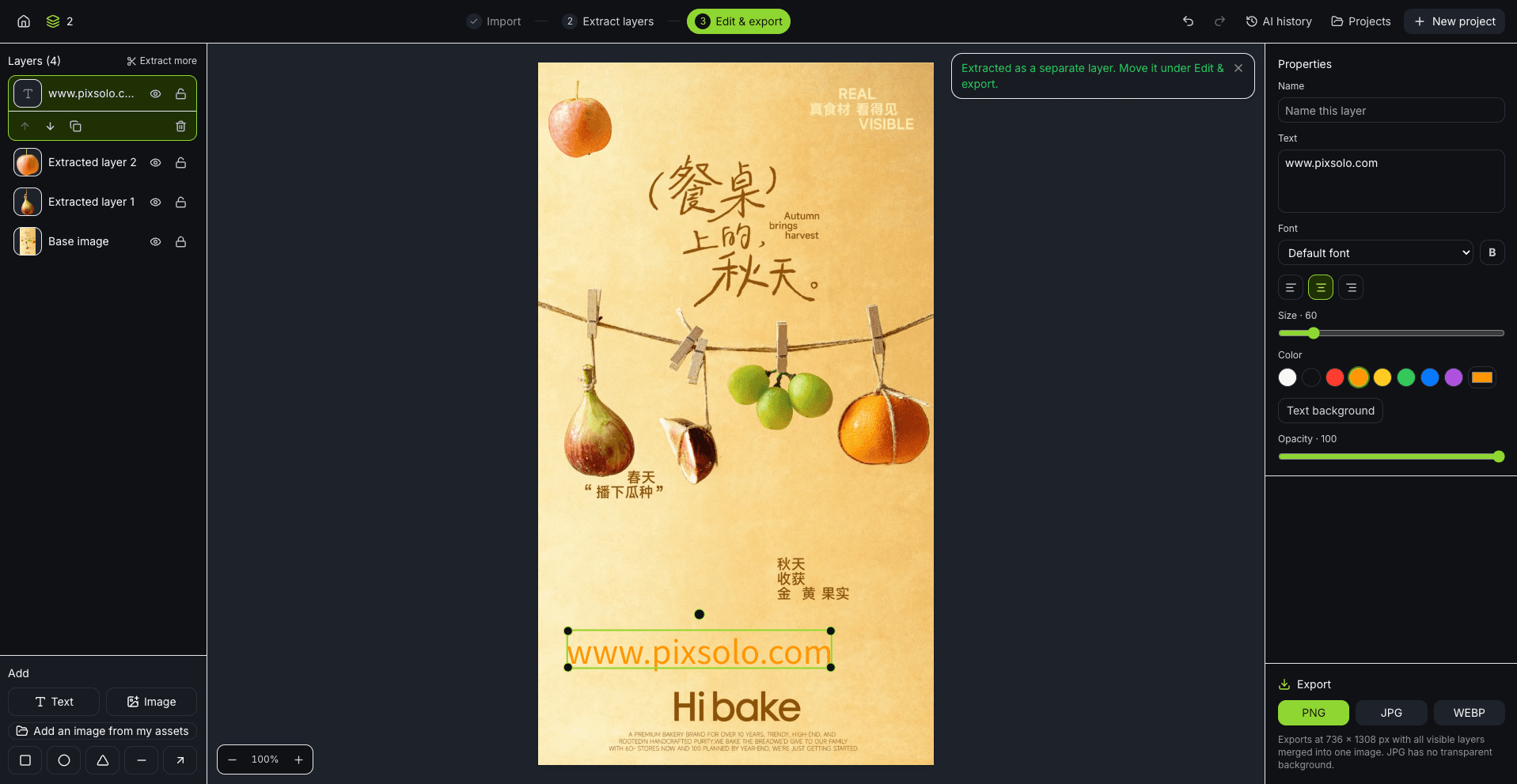
Move, resize and rotate layers, add text, images and shapes, and change their stacking order, with undo and redo. When you are happy, export PNG, JPG or WebP. You can switch between extracting and editing at any time.
What it can do
Point at an object with a box or a sentence
Dragging a box around the object on the canvas is enough. When the picture has several similar objects, adding a short description ("the grey cat", for example) picks the right one more reliably. You can also skip the box and only describe it. The inside of the extracted layer uses the original pixels; only a thin edge is redrawn by AI.
Background fill touches only the removed spot
The spot the object was removed from is filled by AI so the background continues naturally. Only that spot is newly painted; the rest of the picture keeps the original pixels exactly, so other objects and text do not change. You can untick "Also fill the background" to get just the layer and leave the image as is, and fill it separately later.
Titles and icons can be extracted too
Not just objects in photos: title text, icons and decorative shapes on a poster can be boxed and extracted, becoming image layers you can move and resize on their own. Extracted text is a picture and keeps its look; it cannot be edited directly. To change the wording, delete that layer and write new text with the text tool.
Layer editor
Select a layer and drag to move it, drag a corner to resize it, or drag the dot above it to rotate it. Add text, images (from your device or your assets), rectangles, ellipses, triangles, lines and arrows; change the stacking order; hide or lock layers; undo and redo.
Every extraction can be undone
Every AI result is kept in the project's AI history. An extraction can be undone: the layer and the filled background are removed together and the image is restored there. You can also put an earlier result back on the canvas for free. Undoing does not refund credits.
Saved in projects, exported as PNG, JPG or WebP
Layers, imported images and every AI result are saved under Projects and never deleted automatically, so you can come back and continue at any time. Export merges all visible layers into one image at the canvas size; PNG and WebP keep a transparent background, JPG gets a white one.
Who gets your image, and how long it is kept
When you run AI, the relevant part of the image is sent to third-party AI model services located outside mainland China and used solely to produce the result: extraction sends the area inside your box (the whole image when no box is drawn) and the description you wrote, and background fill sends an area around the spot the object was removed from. The description and the result both go through content moderation. Text, images and shapes you add yourself are never sent to the AI models. The original, the layers and every AI result are stored on our servers under your Projects and are never deleted automatically until you delete the project; only you can delete them, and deletion cannot be undone. See the Privacy Policy for details.
FAQ
- Does AI Image Editor cost anything?
- Importing images, moving layers, adding text and shapes and exporting use no credits. AI operations use credits per run, and there are no free daily runs: cutting out an object and filling the background each count as one run. The amount is shown on the button before you run it, and the figure in the tool is the one that applies. You are charged only on success: failed, canceled, timed-out and moderation-blocked runs cost nothing, and when an extraction cuts the object out but fails to fill the background, only the cut-out is charged. Signing in is enough to import and edit — no subscription is required — but running AI needs credits.
- Does the rest of the picture change when I extract an object?
- No. Filling the background takes only the spot the object was removed from; the rest of the picture keeps the original pixels exactly. The inside of the extracted layer is also made of the original pixels; only a thin edge is redrawn by AI. Two things to keep in mind: the object's shadow is not extracted and stays in the image, and thin structures that cross the removed spot, such as ropes or railings, may look slightly soft at the joins when you zoom in.
- What if the cut-out is wrong, or I want a different object?
- Layers you have already extracted are outlined with dashed boxes on the picture and listed on the left. Click "Undo extraction" there and the layer and the filled background are removed together, restoring the image at that spot. Or click "Extract again", adjust the box or the description, and run it once more. Undoing does not refund credits, and extracting again is charged again. An object that has been extracted once cannot be extracted again, because that spot in the image is now background. AI output varies a little from run to run and occasionally picks the wrong thing or fails to line up with the original; a result that does not line up is discarded and not charged.
- Can I extract or change the text in the picture?
- You can extract it, but not edit it directly. Box the text like any other object and it becomes an image layer that keeps its typeface and look; you can move and resize it, and the original spot is filled with background. What you get is a picture, so the wording cannot be changed. To change it, delete that layer and write new text with the text tool.
- How large can the image be, and which formats can I export?
- You can import JPG, PNG and WebP; the file size limit is shown on the tool page. The canvas is at most 3840 px on its longest side (about 8.3 megapixels); larger images are scaled down before editing and the original file stays in the project. Export merges all visible layers into one image at the canvas size, as PNG, JPG or WebP. Exporting a layered PSD file is not available at the moment.
- Is my image stored? Who receives it?
- Yes, it is stored. The original, the layers, imported images and every AI result are saved under your Projects and never deleted automatically; only you can delete them, and deletion cannot be undone. They count toward your account's storage. When you run AI, the relevant part of the image (the area inside your box, or an area around the removed spot) and the description you wrote are sent to third-party AI model services located outside mainland China and used solely to produce the result; the description and the result both go through content moderation. Text, images and shapes you add yourself are never sent to the AI models.
- How long does it take? Can I close the page?
- Cutting out an object and filling the background usually takes from half a minute to a little over a minute. You can leave the page after submitting; the result is saved in the project and placed on the canvas automatically the next time you open it. A run in progress can be canceled: a step that has already finished is kept and charged, an unfinished one is not. Only one AI operation can run at a time, and you can keep editing other layers while it runs.
- What can't it do? Does it work on a phone?
- At the moment you cannot edit the picture with a prompt (change the background, recolor things or add something new), text in the picture cannot be turned into editable text, there are no brushes, filters or cropping, the canvas size cannot be changed, and PSD export is not available. Hair in portraits and transparent or reflective objects have not been specifically tested. On a phone you can import, extract layers, move and resize layers, show or hide them, and export; adding text and shapes and changing layer properties need a computer.
More products
- Core toolApp Screenshots MockupStore screenshots, done in four stepsSee full features
- Companion toolAI ImagesFrontier models, every parameter exposedSee full features
- Companion toolAI Background RemoverRemove backgrounds in one click — even flyaway hairSee full features
- Companion toolAI Object RemoverBox people and clutter, and they're goneSee full features
- Companion toolAI Image UpscalerUpscale small or blurry images 2x or 4x, with sharper text and edgesSee full features
- Companion toolAI Image ExtenderExtend a picture beyond its borders — AI fills in the new areaSee full features
- Companion toolAI ReplaceBrush over something, describe it, and swap it for something elseSee full features
- Companion toolDocument CleanerRemove patterns and shadows for clean, readable documentsSee full features
- Free toolDevice Mockup GeneratorPut images and videos into Apple devicesSee full features
- Free tool3D Device MockupPut screenshots and screen recordings on a 3D device you can rotateSee full features
- Free toolVideo to GIFTurn any clip into a looping GIFSee full features
- Free toolImage AnnotatorCrop, add text and pixelate sensitive details in one placeSee full features
Split your picture into layers now
Get startedExtraction uses credits per run, charged only on success, as shown in the tool. Sign in to import and edit; running AI needs credits.